
College is tough.
Let’s make it a little easier.
Built alongside neurodivergent college students, Equal Edge makes the next step feel clearer, more manageable, and easier to get started
Support for how your brain works
From starting a task to keeping track of time, Equal Edge supports the executive-functioning skills college asks you to use every day.

Getting Started

Task Breakdown

Time Awareness

Prioritization

Working Memory

Follow-Through
Features
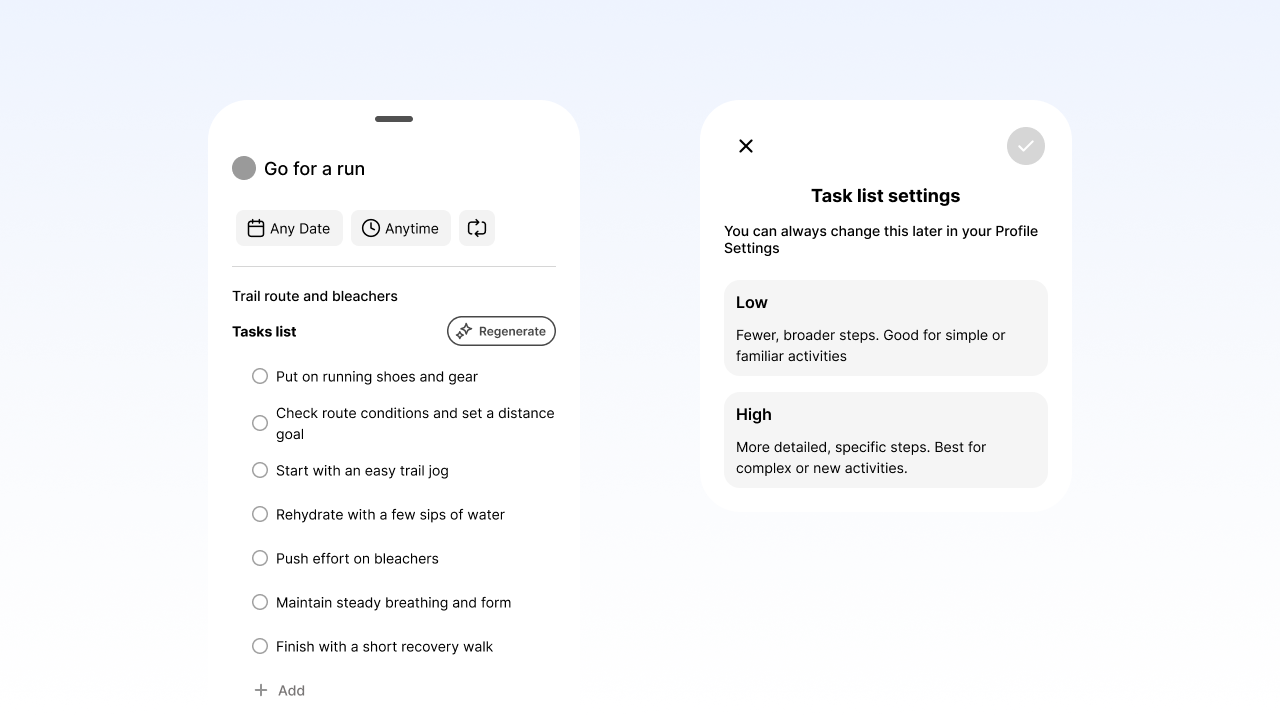
Task Breakdown
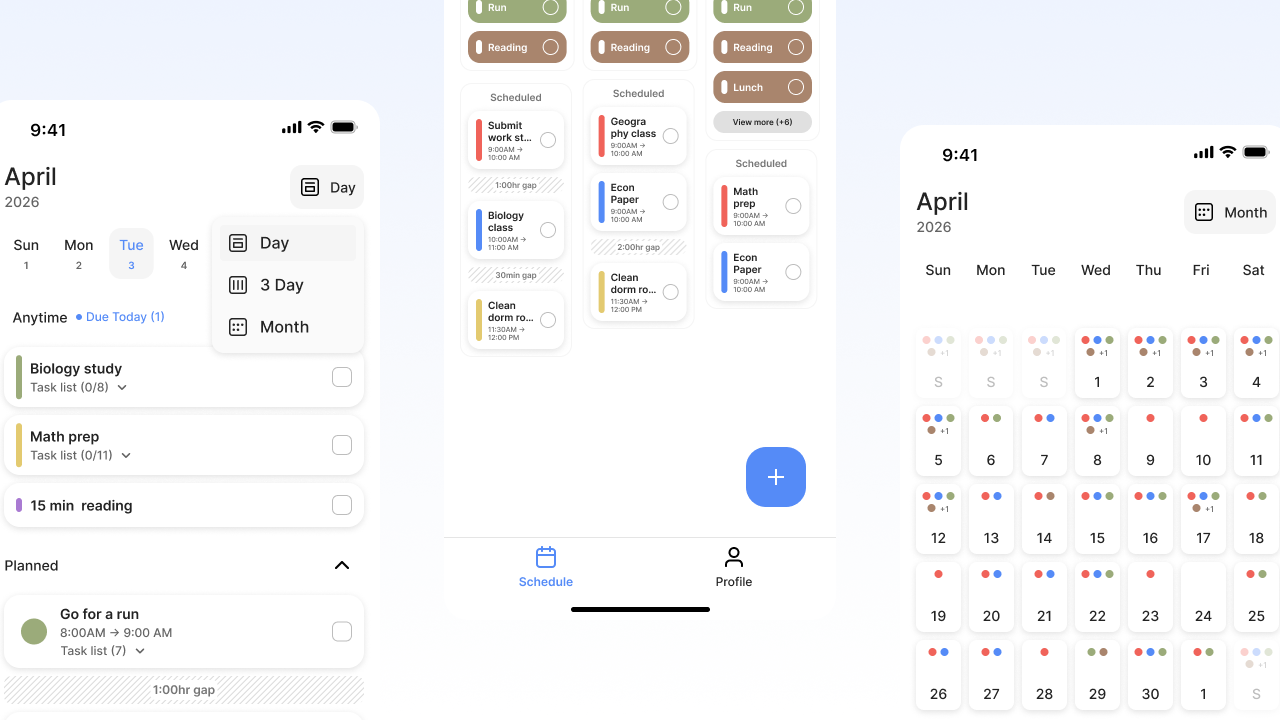
Visual Schedule
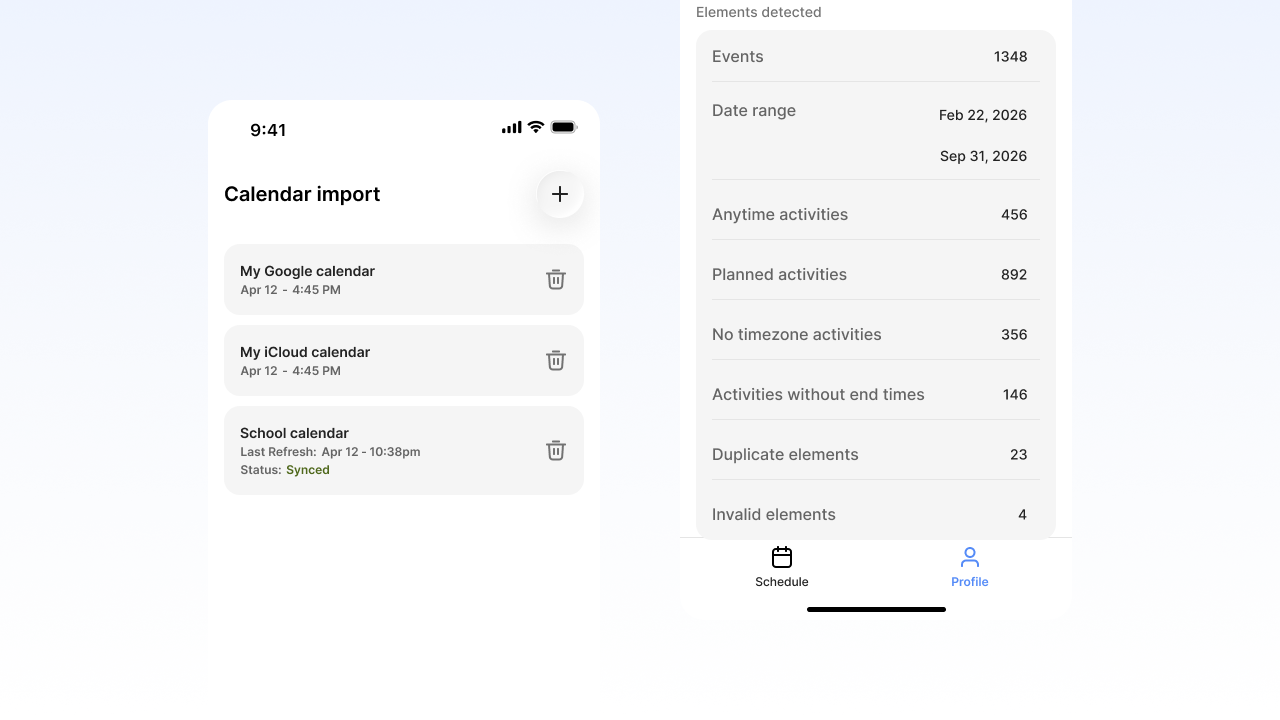
Calendar Import
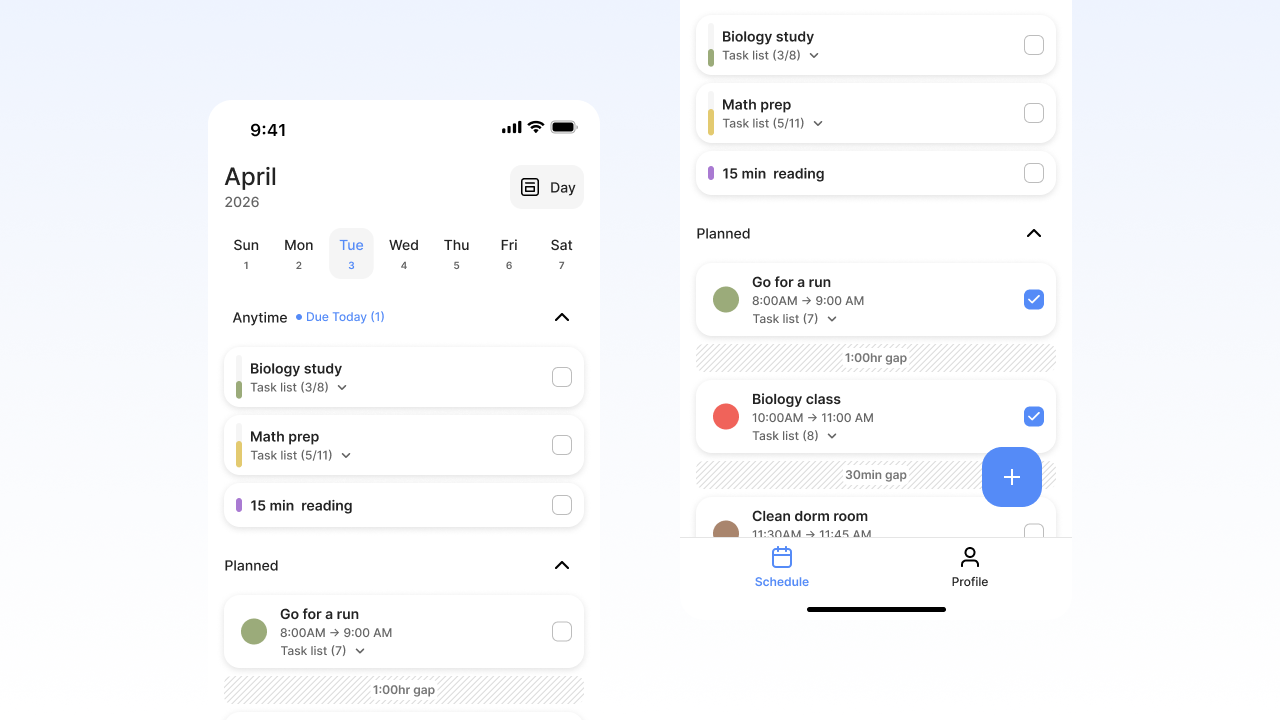
Progress Indicators
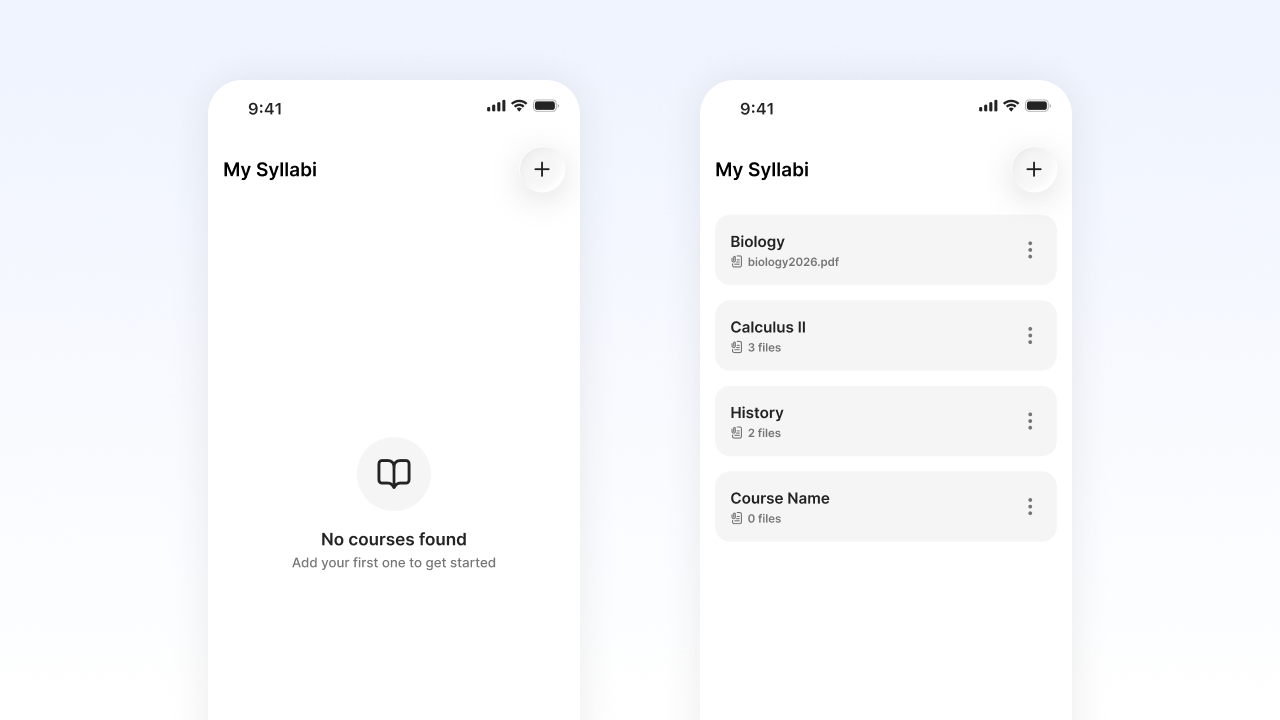
Syllabus Hub
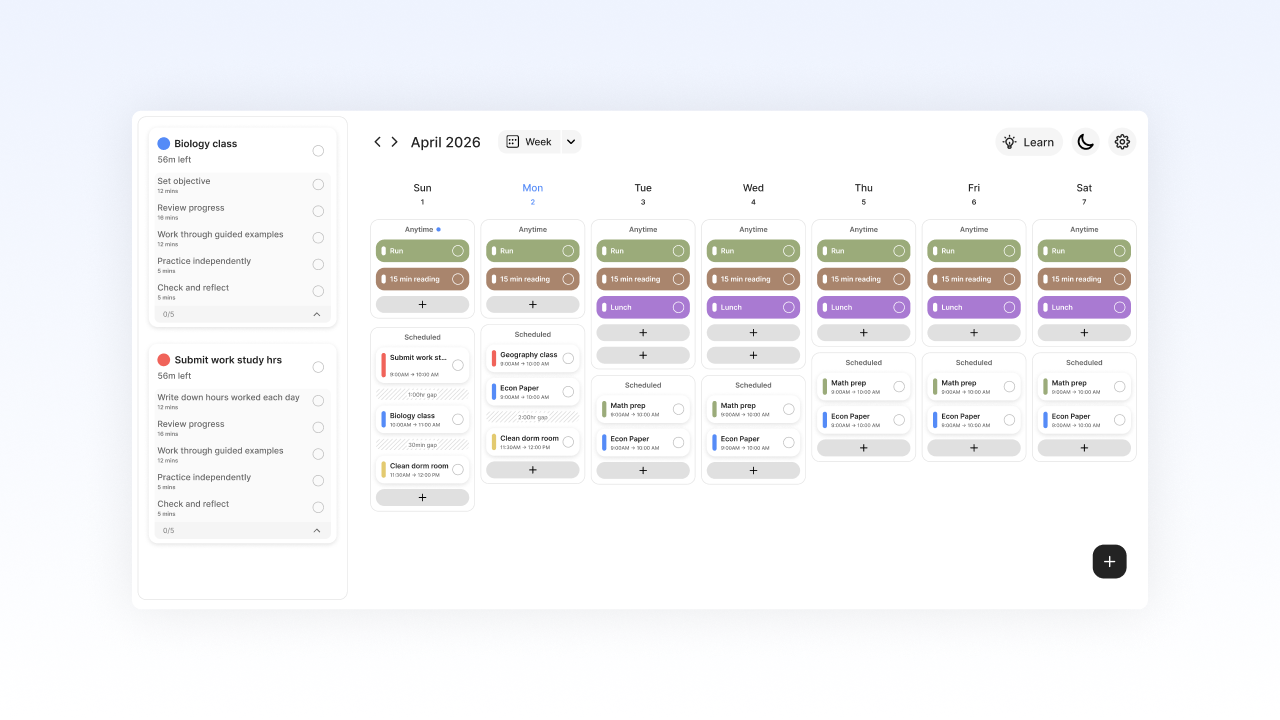
Web Access
Coming Soon

Personalized Growth
Join our Student Ambassador Program
Equal Edge is still growing, and student voices are shaping what comes next.
Find Your People
Earn Points and Rewards
Make a Real Difference
Supported by Your School




Frequently Asked Questions
What does Equal Edge cost?
Equal Edge is free for students participating in the Fall 2026 pilot. No payment information is required.
How do I get started?
Getting started with Equal Edge is simple:
Download Equal Edge from the Apple App Store or Google Play Store.
Open the app and enter your name and email address. (We’ll use your email for password resets.)
Create a password. Your password must be at least 8 characters long and include at least one letter and one number.
Web access is coming soon.
Do I need to join the Student Ambassador Program?
The Student Ambassador Program is your chance to help shape Equal Edge, connect with other students, and earn rewards along the way.
Ambassadors earn points by sharing feedback, completing weekly challenges, and spreading the word about Equal Edge. Redeem your points for gift cards and other rewards, see how your school ranks on the leaderboard, and get early input into what Equal Edge becomes.
Participation is completely optional and separate from your disability services record. After creating your Equal Edge account, you can join directly through the app via Profile.
The Student Ambassador Program portal will be live at the beginning of the Fall 2026 semester.
Why do I need to use my school email address?
Your school email lets Equal Edge know which institution you are part of. This is how the app connects you to your school's pilot program and keeps your data separate from students at other schools.
What happens after I create my account?
After creating your account, you will see a welcome screen with a Start button. When you tap Start, the app adds four pre-built activities directly to your planner. Each one teaches a core skill.
- Create your first activity walks you through creating an activity: setting a title, due date, andnotes, generating a task list with A, and setting time estimates.
- Tap to move this around shows you how to defer tasks and move activities to tomorrow, next week, today, or Anytime (a to-do without an assigned day or time).
- Import your calendar guides you to Profile, then Import Calendar, where you can upload an ICS file or paste a calendar feed link.
- Upload your syllabus guides you to Profile, then My Syllabi, where you upload course documents.
The onboarding tasks appears only once. After that, you go directly to your planner each time you open the app. If you missed onboarding or want to revisit the basics, visit Support or email support@equaledgeu.com.
How do I import my schedule?
You can import your schedule using an ICS file, the standard calendar format used by Canvas, Google Calendar, Google Classroom, Outlook, Brightspace, CoursePlus, and most other course management systems.
In Equal Edge, go to Profile, then tap Import Calendar. From there, you can upload a downloaded ICS file or paste a live calendar feed link.
Import can take up to 15 seconds. If you leave the app while it is processing, come back and it will pick up where it left off.
Canvas
- Log in to Canvas
- Click Calendar in the left navigation bar.
- At the bottom right of the calendar sidebar, click Calendar Feed.
- Copy the URL that appears. You can paste it directly into Equal Edge as a live feed, or right-click and choose Save link as to download an ICS file. (Note: downloaded ICS files are static and will not reflect changes after upload)
- In Equal Edge, go to Profile, tap Import Calendar, and paste the link or upload the file.
Google Classroom
Google Classroom syncs your class assignments to Google Calendar automatically. Follow the Google Calendar steps below to export from there.
Google Calendar
- Open Google Calendar in a browser.
- On the left sidebar, find the calendar you want to export.
- Click the three-dot menu next to it and select Settings and Sharing.
- Scroll down to Integrate calendar. Copy the link labeled Secret address in iCal format.
- In Equal Edge, go to Profile, tap Import Calendar, and paste the link.
Outlook (web)
- Go to outlook.com or your school's Office 365 calendar and sign in.
- Click the Settings gear, then View all Outlook settings.
- Select Calendar, then Shared calendars.
- Under Publish a calendar, choose your calendar and set it to Can view all details.
- Click Publish. Copy the ICS link that appears.
- In Equal Edge, go to Profile, tap Import Calendar, and paste the link.
Outlook (desktop app)
- Open Outlook and go to the Calendar view.
- Click File in the top menu, then Save Calendar.
- Choose where to save the file. It saves as an ICS file.
- In Equal Edge, go to Profile, tap Import Calendar, and upload the file.
Brightspace
- Log in to Brightspace and navigate to Calendar from your homepage or Course Home.
- Click Settings and enable Calendar Feeds to allow exports. Click Save.
- Click the Subscribe option next to Settings.
- Choose which schedule and level of detail you want to subscribe to.
- Copy the link.
- In Equal Edge, go to Profile, tap Import Calendar, and paste the link.
CoursePlus (Johns Hopkins Bloomberg School of Public Health)
- Log in to CoursePlus.
- Open the Course Content or Class Schedule page.
- Locate the Download Course Schedule link.
- Copy the link. You can paste it directly into Equal Edge as a live feed, or right-click and choose Save link as to download an ICS file. (Note: downloaded ICS files are static and will not reflect changes after upload)
- In Equal Edge, go to Profile, tap Import Calendar, and upload the file or paste the link.
What is an ICS file?
An ICS file is a standard calendar format used by most calendar apps and course management systems. When you export your schedule from Canvas, Google Calendar, or Outlook, the file you receive is usually an ICS file. Equal Edge uses it to import your classes, assignments, and deadlines without you having to type them manually.
How do I upload a syllabus?
In the app, go to Profile, then tap My Syllabi. If you have not created a course yet, create one first. Select your course, then tap the + sign to upload.
Accepted formats: PDF, JPG, or PNG. You can also take a photo of a printed syllabus directly from your phone's camera.
Repeat this for each course.
What can I do with a stored syllabus right now?
Right now, your syllabus is stored as a reference document you can open and read in the app at any time. Automatic deadline extraction, the feature that reads your syllabus and pulls key dates directly into your planner, is in development and not yet available. Until it goes live, you can add deadlines from your syllabus to your planner manually.
Participating in this pilot gives you early access to that feature when it launches.
What’s the difference between an activity and a task?
An Activity is the bigger commitment or goal —the project, assignment, or goal you want to accomplish. Tasks are the smaller, actionable steps that make up an activity. They’re the “how” you get it done.
For example, writing a paper for English class.
Activity: Writing English Paper
Tasks:
- Review the assignment instructions
- Ask professor any questions you have about the assignment
- Choose a topic
- Write a thesis statement
- Create a simple outline
- Write the introduction paragraph
- Write the body paragraphs
- Write the conclusion paragraph
- Check spelling and grammar
- Peer review
- Submit the paper
What features are coming out soon?
The app currently includes your planner (Schedule) and your course document storage (Syllabus Hub). Two additional sections are coming in Fall 2026.
The Grow section will offer a library of topic-based content, self-discovery assessments, and reflective tools that support executive functioning skill-building over time. The Learn section will expand on this with a full library of personalized content.
A dedicated Timer for focused work sessions is also coming in Fall 2026. In the meantime, AI-generated time estimates on your activities help you understand how long tasks actually take.
Equal Edge will communicate major updates to your school as new features go live. You can also check equaledgeu.com for the latest.
Will my disability services office see what I do in the app?
Your disability services office cannot see your task content, notes, planner entries, or syllabus documents.
Equal Edge shares data with your school in two ways. First, your school receives aggregate reports showing how students as a whole are using the app. Second, your school receives individual-level engagement signals, specifically whether your activities are being completed, left incomplete, or deferred. These signals are based on patterns of activity, not the content of what you write, and are intended to help your office identify when a student may benefit from outreach.
Your participation in the pilot is completely separate from your academic and disability services record. Signing up for Equal Edge creates no entry in your school's systems and does not appear anywhere in your academic file.
Is my data private?
Equal Edge collects the information you provide at sign-up (your name and school email address) and the content you create in the app (activities, tasks, time estimates, syllabus documents, andnotes). We also collect basic device and usage data through Mixpanel to understand how the app is being used and improve it over time.
We do not sell your personal information toanyone. We do not share your data with any third parties without your consent.
When you use AI features in the app, the text you enter is processed through OpenAI. Do not enter sensitive personal information, such as social security numbers or medical details, into AI fields.
For the full privacy policy, visit equaledgeu.com/privacy-policy. For privacy-specific questions, email privacy@equaledgeu.com.
What do I do if something isn’t working in the app?
Equal Edge handles all student support directly during the pilot. Your disability services office is not involved in technical support.
To reach us: email support@equaledgeu.com or visit equaledgeu.com/support. You can also go to Settings in the app, then Contact Us.
Tell us what happened, what you were trying to do, and what device or browser you are using. We will follow up as quickly as we can.
How do I delete my account?
You can stop using Equal Edge at any time. There is nothing to cancel and no one to notify. Simply stop opening the app.
If you want your account and data deleted, email us at privacy@equaledgeu.com with your name and school email address and we will delete your account.
A few things worth knowing: opting out has no effect on your disability services record or any other academic file. Your school is not notified when you stop using the app. If you were participating in the ambassador program, your points and activity history will be removed along with your account.
If you change your mind later, you can create a new account at any time with the same school email.